How to connect to the free VPN you just deployed on AWS
I am a french Developer, working for a french startup :) i like video games, computers and drinking Ricoré
In the previous article, i showed you how to setup a free VPN on AWS.
Now, i am going to show you how to use that VPN as a user.
Back to the AWS Console
Go back to your AWS Management Console > EC2 > your instance
Grab the Public IPv4 DNS and paste it on your url (don't forget the https://)
This time no need to add the /admin at the end.
The first time, we connected to the admin dashboard.
But this time, we are going to connect as a user.
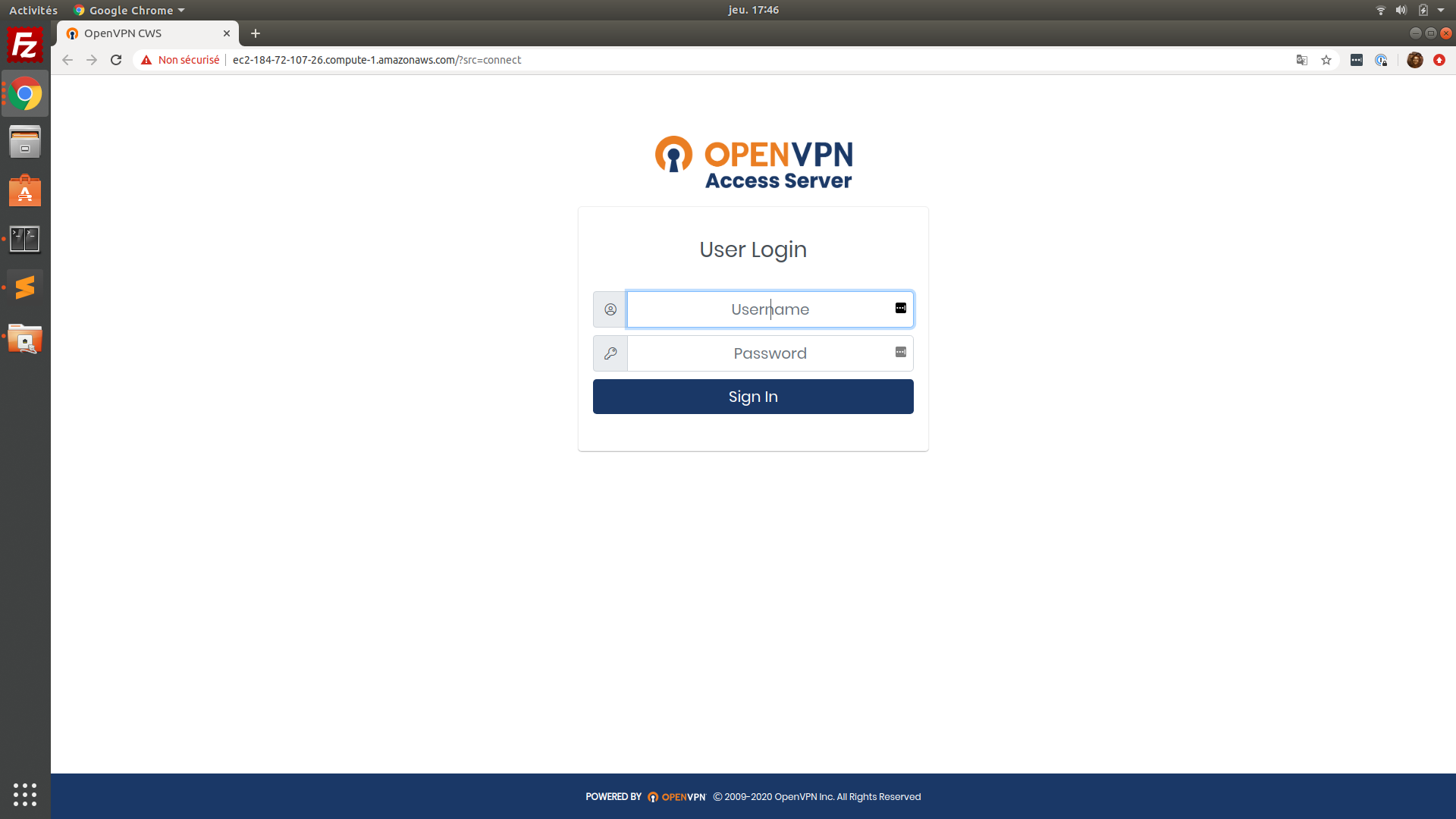
Username : openvpn
Password : your password
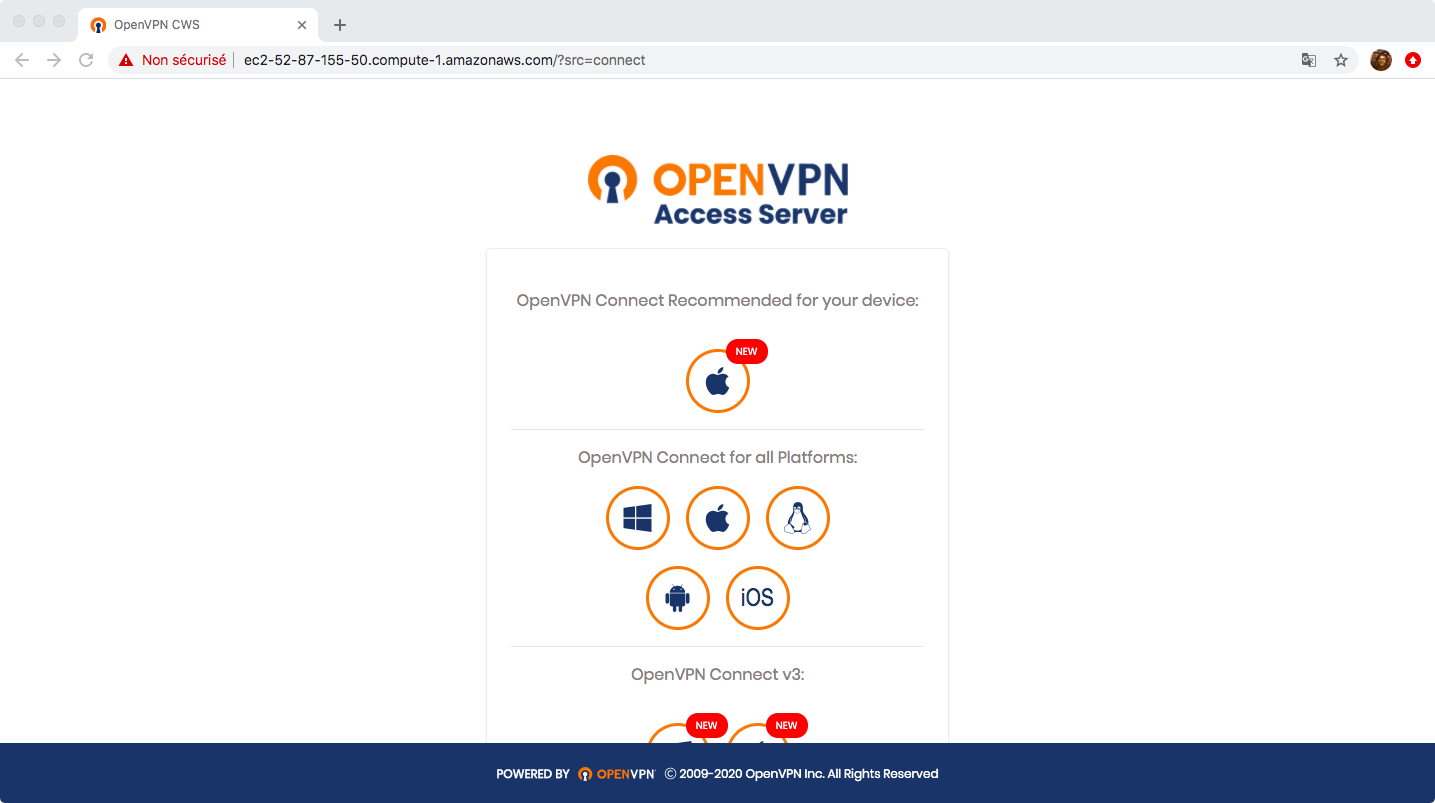
It's gonna ask you to download a client to connect to the VPN (depending on your OS).
Follow the instructions (i did it for MacOS on the example)
Download the software , install it on your computer
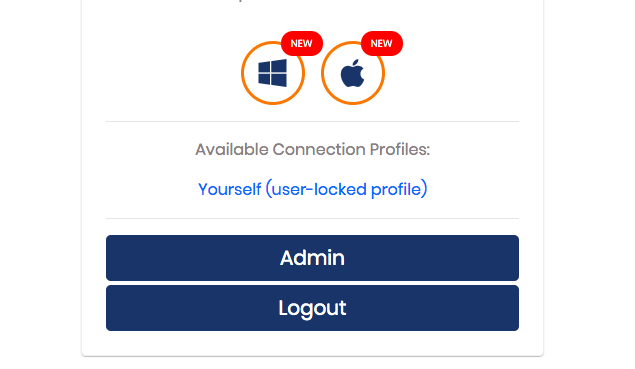
Don't forget to download the client.opvn file (click on Yourself like the picture below to download that file)
Once installed, open the app
Import the file you just downloaded
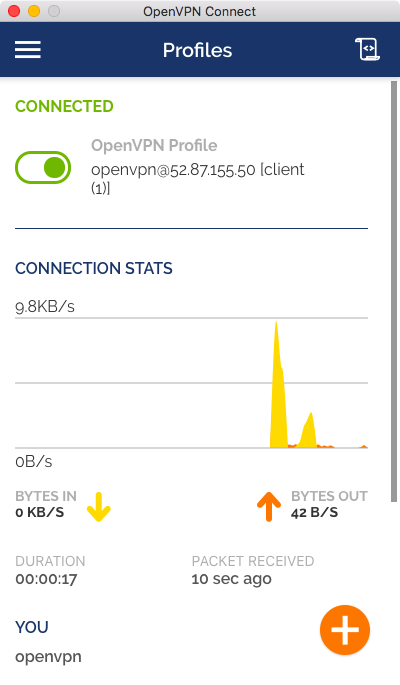
Hit add
Connect
And ... Voilà !
Let's check my ip address

It's the server IP !
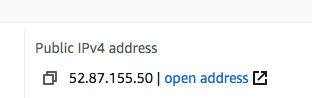
Great :)
Congrats !!
Remember
NB : Once again, this is just an example of what you can do with AWS
Don't use this server as a real VPN for your personal use.
It may have additional costs and i don't want you to lose money !
Use the free tier to install and try stuff, but don't forget to disconnect from the VPN when you finished this tutorial and terminate your instance on AWS management console.